

📥 Getting Data in Power BI – The Complete Beginner Guide
🌐 URL: https://techtown.in/power-bi/getting-data/
📅 Updated: July 2025 | 📊 Written by: TechTown Data Team
🔍 Keywords: Power BI, Get Data, Import Excel, Power BI Data Sources, Load CSV Power BI, Connect Database Power BI
🔰 Introduction
Power BI is a powerful business intelligence tool — but the first step to any great dashboard is bringing in the right data.
In this guide, we’ll walk you through the “Get Data” feature of Power BI Desktop. You’ll learn:
- How to import data from Excel or CSV
- Available data sources in Power BI
- Common tips for beginners
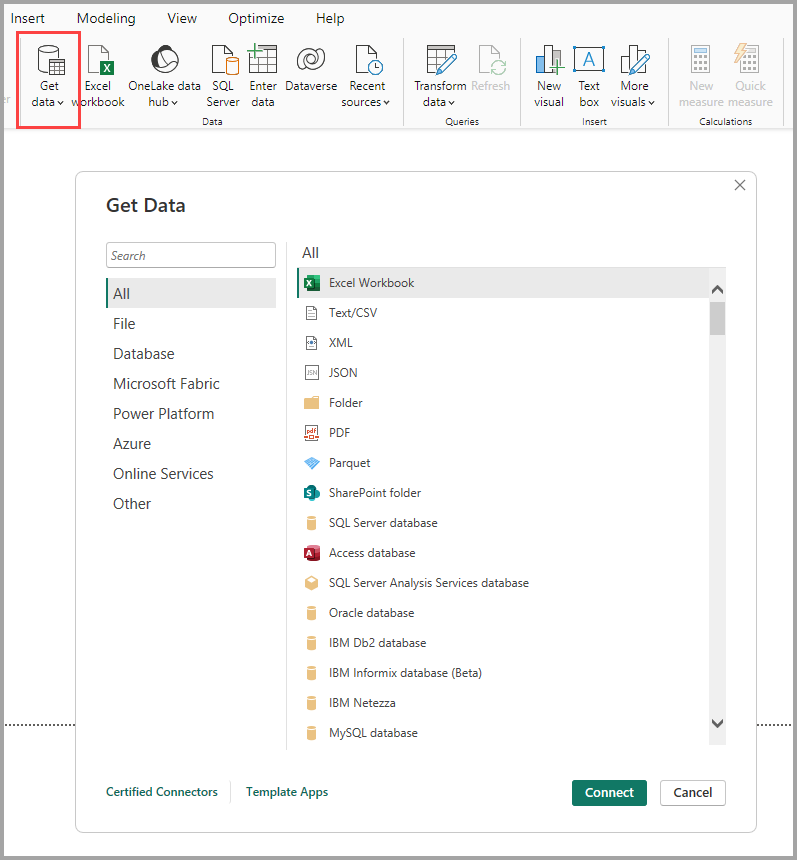
📸 The image above shows the “Get Data” window in Power BI where you can choose from dozens of data connectors.
📦 What is “Get Data” in Power BI?
The “Get Data” button is your gateway to connect Power BI to the data source you want to analyze.
You can access it from:
🧭 Home tab → Get Data → More…
This opens a powerful dialog that allows you to import data from:
- Local files (Excel, CSV, JSON, XML, PDF)
- Databases (SQL Server, MySQL, Oracle, etc.)
- Online services (SharePoint, Azure, Salesforce, etc.)
- Cloud sources (Microsoft Fabric, OneLake, Power Platform)
Whether your data is stored on your system, in the cloud, or spread across multiple sources — Power BI helps bring it all together.
📁 Step-by-Step: Getting Data from Excel/CSV
Here’s how to get started with a simple Excel or CSV file:
✅ Step 1: Click “Get Data”
Go to the Home tab and click on Get Data.
Choose either:
- Excel Workbook
- Text/CSV

(You can also access recent or common sources quickly from the ribbon.)
✅ Step 2: Select Your File
Once you choose a source, Power BI prompts you to browse and select the file.
For example:
📄 File Name: techtown_sales_data_jan2025.csv
📂 Location: Downloads or any local folder
✅ Step 3: Preview and Load/Transform
You’ll see a preview window with the dataset.
Now choose:
- Load: To import data as-is
- Transform Data: To open Power Query Editor and clean/shape data before using it
🔎 Best Practice: Always click on Transform Data to check and clean your dataset before loading.
🔌 List of Commonly Used Data Sources
Here are just a few data connectors available in Power BI under “Get Data”:
| Category | Examples |
|---|---|
| File | Excel, CSV, XML, JSON, PDF, Parquet, Folder |
| Database | SQL Server, MySQL, Oracle, PostgreSQL, IBM Db2, Access |
| Power Platform | Power BI datasets, Dataverse, Power Platform dataflows |
| Azure | Azure SQL, Azure Blob, Azure Table, Azure Data Lake |
| Online Services | SharePoint Online, Dynamics 365, Google Analytics, Salesforce |
| Other | Web URL, R scripts, Python scripts, OData feeds |
💡 Don’t worry if you don’t see your platform. You can install additional connectors or use the “Web” option to pull from APIs and URLs.
🔍 Filtering Connectors (Left Sidebar Categories)
Power BI also organizes sources into intuitive categories like:
- File
- Database
- Microsoft Fabric
- Power Platform
- Azure
- Online Services
- Other
You can even use the Search bar to find a connector quickly.
📤 Load vs Transform – What to Choose?
| Option | Description |
|---|---|
| Load | Directly loads the data into Power BI’s data model |
| Transform | Opens Power Query Editor for cleaning and shaping data |
If your data contains:
- Missing values
- Wrong data types
- Extra or empty rows
👉 Go with Transform Data to fix it first.
🧠 Smart Tips for Beginners
- Always check column data types (e.g., date, number, text) before loading.
- Use Folder connector if you want to load multiple CSVs from a folder at once.
- Power BI remembers your Recent Sources for easy re-connection.
- If loading large files, use Data Reduction techniques like filters or sampling.
🧩 Advanced Tip: Combining Data Sources
Yes! Power BI lets you combine:
- Excel + SQL + Web APIs
- CSV + SharePoint
- JSON + Dataverse
Use Merge Queries or Append Queries inside Power Query to build unified tables from multiple sources.
📘 Summary
The “Get Data” experience in Power BI is where your data journey begins. It’s fast, flexible, and connects you to almost every data source out there — from Excel files to enterprise-grade databases.
🧪 The magic of Power BI isn’t just in visuals — it’s in how easily you can bring data to life from anywhere.