How to Load Data from Amazon(AWS) S3 into Snowflake and Copy Files Between Stages: A Complete Step-by-Step Guide
Connecting Snowflake to Amazon S3 unlocks seamless, scalable ingestion pipelines for analytics and cloud data engineering. Once the connection and integration are set up, the next phase is loading data from S3 into Snowflake and even copying files between different S3 locations using Snowflake stages.
This article provides a complete, deeply educational walkthrough of creating stages, listing files, previewing data, loading tables, creating destination stages, and copying files between stages. It is written for data engineers, Snowflake practitioners, and SnowPro Core certification learners.
Step 1: Test the Connection by Creating an External Stage
With the storage integration configured earlier, the next step is to test the connectivity by creating an external stage that points directly to your S3 bucket.
External Stage Creation
Use the stage definition that includes:
- File format
- Storage integration
- S3 bucket URL
Example:
CREATE OR REPLACE STAGE SOURCE_AWS_STAGE
FILE_FORMAT = 'CSVTYPE'
STORAGE_INTEGRATION = AWS_INT
URL = 's3://yourbucketname/landing/';
This stage acts as a pointer that lets Snowflake access the files inside the landing folder of your S3 bucket.
Execute below command
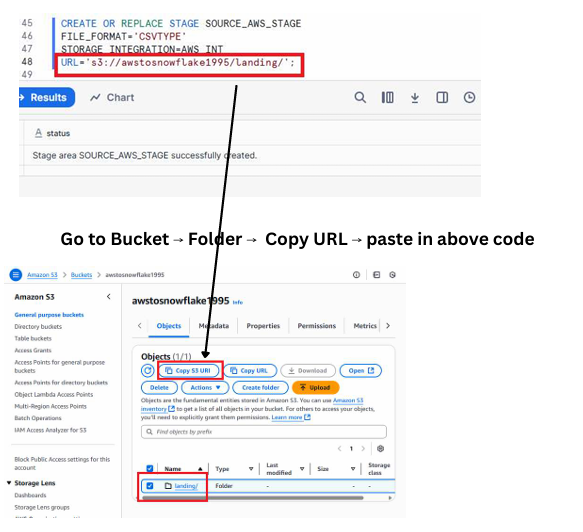
A screenshot showing the Snowflake worksheet where the CREATE STAGE command is executed successfully, with the S3 bucket URL clearly visible in the stage definition.
Step 2: List Files From S3 Inside Snowflake
Snowflake allows you to verify the contents of the S3 folder using the LIST command.
Command
LIST @SOURCE_AWS_STAGE;
This confirms whether Snowflake can access your S3 bucket and shows all available files.
Expected Output
You should see entries such as:
- Brazil_Customer.csv
- India_Customer.csv
- USA_Customer.csv
Execute Below command
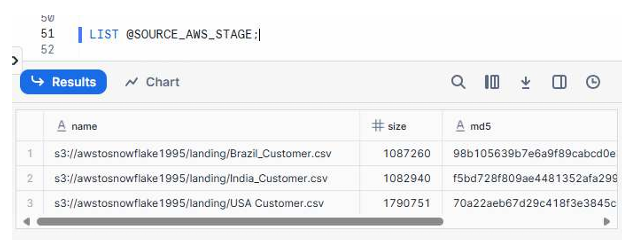
A screenshot showing the LIST output with three rows corresponding to Brazil, India, and USA customer CSV files, including file paths, sizes, and last modified timestamps.
As you can see the 3 files which are in AWS S3 storage
Step 3: Query Data Directly From the S3 Stage
Before loading data into Snowflake tables, you can preview the file contents directly using SQL.
Query Example
SELECT $1, $2, $3
FROM @SOURCE_AWS_STAGE
LIMIT 10;
This retrieves columns from the CSV files without loading them into a table yet.
Why This Step Matters
- Validates that Snowflake can read the file format
- Ensures the data structure matches your target table
- Helps troubleshoot delimiter or parsing issues early
Let us check the data
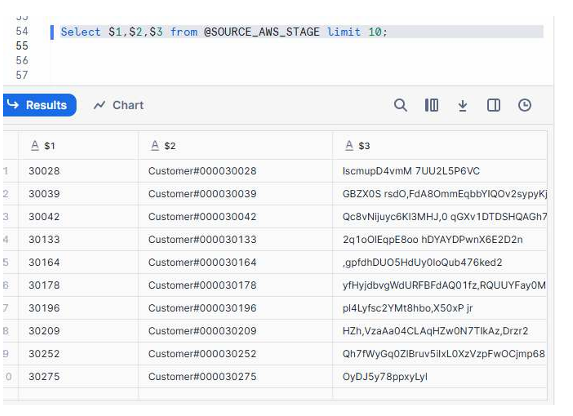
A screenshot showing the result grid with sample customer IDs, names, and address values returned from the staged files.
Step 4: Load Data Into a Snowflake Table
Once verified, the next step is loading the cleaned CSV data into the CUSTOMER table.
COPY INTO Command
COPY INTO CUSTOMER
FROM @SOURCE_AWS_STAGE
ON_ERROR = 'CONTINUE';
Key Highlights
- The
COPY INTOcommand loads all matching files from the stage. ON_ERROR = CONTINUEensures minor row-level errors don’t interrupt the full load.- After execution, you can query the CUSTOMER table to validate data.
Now let us copy the data in to Snowflake landing
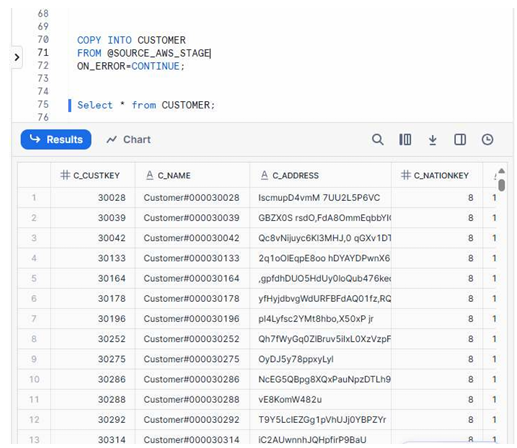
A screenshot showing the Snowflake worksheet where the COPY command succeeded and the CUSTOMER table displays populated rows such as C_CUSTKEY, C_NAME, C_ADDRESS, and other columns.
Step 5: Create a Destination Folder in S3
To demonstrate multi-stage operations, you create a new folder inside your S3 bucket called destination/.
What You Do
- Open your S3 bucket
- Click “Create Folder”
- Name it destination
- Copy the S3 URL of this folder for later stage creation
Now create a folder named destination and copy S3 url
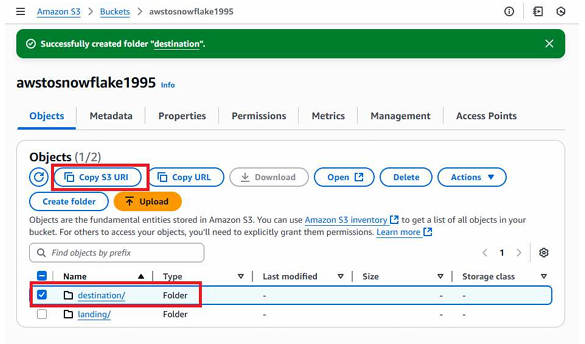
A screenshot showing the S3 bucket view with the newly created destination folder highlighted and the S3 URL copy option visible.
Step 6: Create a Destination Stage in Snowflake
This stage targets the destination/ folder created in S3 and allows Snowflake to write files into it.
Stage Creation Command
CREATE OR REPLACE STAGE DESTINATION_AWS_STAGE
FILE_FORMAT = 'CSVTYPE'
STORAGE_INTEGRATION = AWS_INT
URL = 's3://yourbucketname/destination/';
Why This Matters
This stage will be used to copy files from the landing stage to the destination stage, enabling automated S3 reorganizations or archival processes.
Create Destination Stage
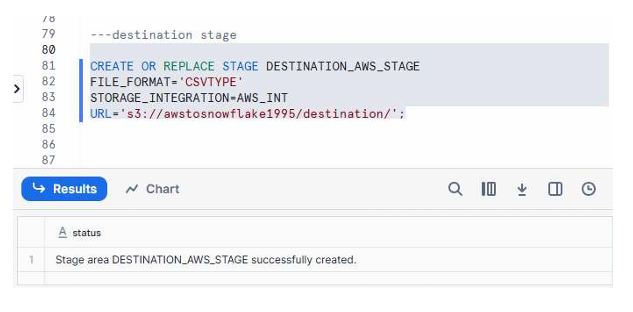
A screenshot showing the Snowflake worksheet where the destination stage is created successfully.
Step 7: Copy Files Between Stages (Landing → Destination)
Snowflake allows you to copy files directly from one S3 folder to another using stages.
COPY FILES Command
COPY FILES INTO @DESTINATION_AWS_STAGE
FROM @SOURCE_AWS_STAGE;
This action duplicates the original files from the landing/ folder into the destination/ folder.
What to Expect
- No data mutation—only file duplication
- Useful for building archival or downstream workflows
- Helps implement multi-zone data lake design (landing → refined → curated)
Copying files from landing to destination folder
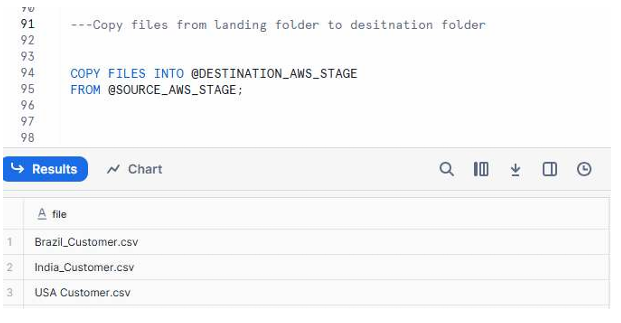
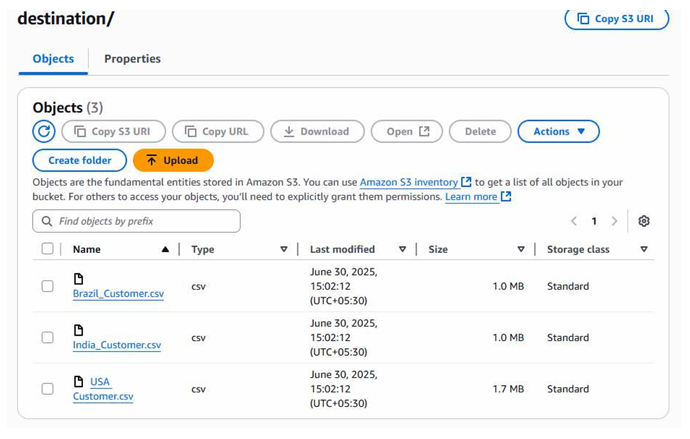
A screenshot showing the results of the COPY FILES command, followed by an S3 console view displaying Brazil_Customer.csv, India_Customer.csv, and USA_Customer.csv inside the destination folder.
Below are the files which we copied from landing folder to destination folder
Summary: End-to-End Flow Completed
The complete workflow now includes:
- Creating a stage to test Snowflake-S3 connectivity
- Listing and validating files inside the S3 landing folder
- Querying data directly from the external stage
- Loading CSV data into the CUSTOMER Snowflake table
- Creating a new destination folder in S3
- Creating a destination stage in Snowflake
- Copying files between stages (landing → destination)
What You Have Achieved
- Verified secure integration between Snowflake and S3
- Loaded real data from S3 into Snowflake tables
- Used Snowflake stages effectively for reading and writing
- Demonstrated cross-stage file operations
- Built a foundational data engineering workflow suitable for production pipelines
This complete walkthrough prepares you for practical Snowflake data ingestion challenges.