A compact, execution-ready reference for configuring, validating, and loading data from Azure ADLS into Snowflake using Storage Integrations and external stages.
This summary sheet consolidates every essential command and every required step into one streamlined guide. It includes Snowflake SQL, Azure actions, and the complete flow—from retrieving Azure identifiers to creating stages and loading tables. Ideal for rapid implementation, revision, or automation.
1. Azure ADLS → Snowflake Integration Cheatsheet
Collect Azure Details
- Tenant ID:
Microsoft Entra → Overview → Copy Tenant ID - Container URL:
Storage Account → Containers → 3-dot menu → Container Properties → Copy URL
2. Snowflake Integration Commands (Core Setup)
Create Storage Integration
CREATE OR REPLACE STORAGE INTEGRATION snow_azure_int
TYPE = EXTERNAL_STAGE
STORAGE_PROVIDER = AZURE
ENABLED = TRUE
AZURE_TENANT_ID = '<tenant-id>'
STORAGE_ALLOWED_LOCATIONS = ('azure://<storageaccount>.blob.core.windows.net/<container>/landing/');
Describe Storage Integration (Consent + Identity)
DESC STORAGE INTEGRATION snow_azure_int;
Copy:
- Azure consent URL
- Azure service principal ID
Paste the consent URL in a browser → Accept permissions.
3. Azure IAM Configuration (Roles)
Assign Role to Snowflake Service Principal
Azure Portal → Storage Account → Containers → IAM → Add Role Assignment →
Select:
- Role: Storage Blob Data Contributor
- Member: Snowflake service principal (from DESC output)
Review + Assign.
4. Create Stage and File Format in Snowflake
Create File Format
CREATE OR REPLACE FILE FORMAT Customer.Rawlayer.csv_fileformat
TYPE = 'CSV'
FIELD_DELIMITER = ','
SKIP_HEADER = 1
REPLACE_INVALID_CHARACTERS = TRUE;
Create External Stage
CREATE OR REPLACE STAGE Customer.external_stages.stg_azure_cont
STORAGE_INTEGRATION = snow_azure_int
URL = 'azure://<storageaccount>.blob.core.windows.net/<container>/landing/'
FILE_FORMAT = Customer.Rawlayer.csv_fileformat;
Verify ADLS Connectivity
LIST @Customer.external_stages.stg_azure_cont;
Shows file names, sizes, timestamps, and load status.
5. Load Data Into Snowflake Table
Create Table
CREATE OR REPLACE TABLE Customer.Rawlayer.customer_data (
    ID NUMBER,
    Name STRING,
    Address STRING,
    PhoneNo STRING,
    Joiningdate STRING,
    Runby STRING
);
Copy Data Into Table
COPY INTO Customer.Rawlayer.customer_data
FROM @Customer.external_stages.stg_azure_cont
FILE_FORMAT = (TYPE = 'CSV' ERROR_ON_COLUMN_COUNT_MISMATCH = FALSE);
Validate Load
SELECT * FROM Customer.Rawlayer.customer_data;
6. Complete End-to-End Flow Diagram
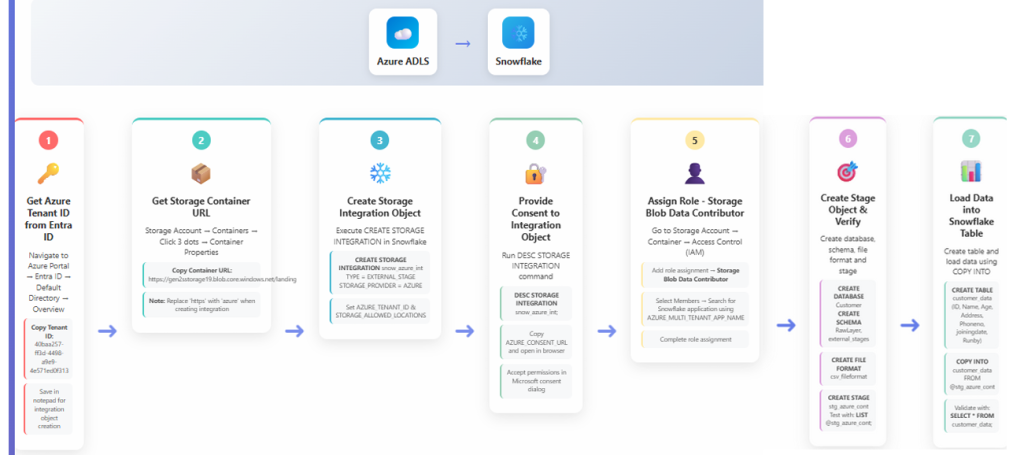
A visual representation of the full workflow:
- Azure ADLS
- Get Tenant ID from Microsoft Entra
- Get Storage Container URL
- Create Storage Integration in Snowflake using Tenant ID + azure:// path
- Provide Consent via Microsoft permissions link
- Assign IAM Role (Storage Blob Data Contributor) to Snowflake service principal
- Create Stage with integration + container URL
- Load Table using COPY INTO command
This flow connects Azure identity, permissions, and Snowflake ingestion into one unified sequence.
7. Short Execution Summary
- Collect Azure identifiers
- Create Snowflake storage integration
- Provide Azure consent
- Assign blob contributor role
- Create stage
- List ADLS files
- Copy files into a Snowflake table
Conclusion
This guide provides every operational command and configuration required to integrate Azure ADLS with Snowflake and load data seamlessly into analytical tables. It captures the complete identity workflow, IAM permissions, stage creation, validation, and ingestion pipeline—organized for fast execution and high clarity.