A complete guide to gathering the required Azure details and creating a secure Storage Integration in Snowflake.
Connecting Azure Data Lake Storage (ADLS) with Snowflake enables scalable ingestion pipelines, external stages, and enterprise-grade data movement. Before Snowflake can access ADLS, several prerequisites must be collected from Azure and configured inside Snowflake. This article walks through those foundational preparation steps with clarity and precision.
1. Introduction
Snowflake integrates with Azure ADLS through a Storage Integration object, which establishes a secure trust relationship between Snowflake and Azure. To configure this integration, specific identifiers from Microsoft Entra ID and Azure Storage Accounts must be gathered in advance.
These values allow Snowflake to authenticate properly, enforce least-privilege access, and securely read or write data from ADLS containers.
2. Step 1: Get the Tenant ID from Microsoft Entra ID
The Tenant ID uniquely identifies your Azure Active Directory environment. Snowflake requires this value during Storage Integration creation to validate identity within the Azure ecosystem.
How to Retrieve the Tenant ID
- Open the Azure Portal
- Navigate to Microsoft Entra ID
- Go to Overview
- Locate Tenant ID and copy it
This value will later be used in the Snowflake integration command.
Go to Azure environment ⟶ Microsoft Entra ⟶ Tenant ID & Copy it in notepad
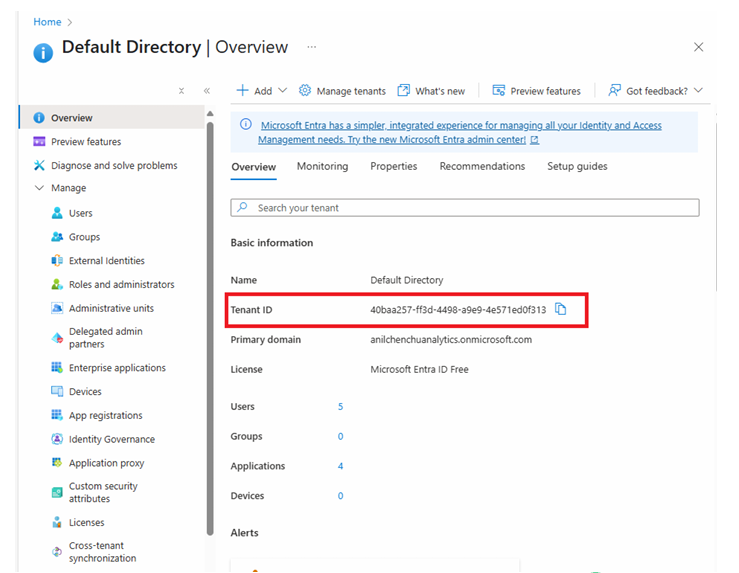
Tenant ID highlighted in the Microsoft Entra Overview panel, showing the directory information and unique GUID format.
The Tenant ID ensures Snowflake authenticates against the correct Azure directory.
3. Step 2: Get the Storage Container URL
The next required value is the fully qualified URL for the ADLS container that Snowflake will access.
Steps to Obtain the Container URL
- Open Azure Storage Account
- Select Containers
- Click the three-dot menu beside the target container
- Open Container Properties
- Copy the Container URL
This URL defines the path Snowflake will be authorized to read or write.
Go to Storage account ⟶ Containers
Click on 3 dots on container shown in 1 diagram below ⟶ Click on container properties & copy URL as shown in diagram 2 & save it in notepad
Diagram-1
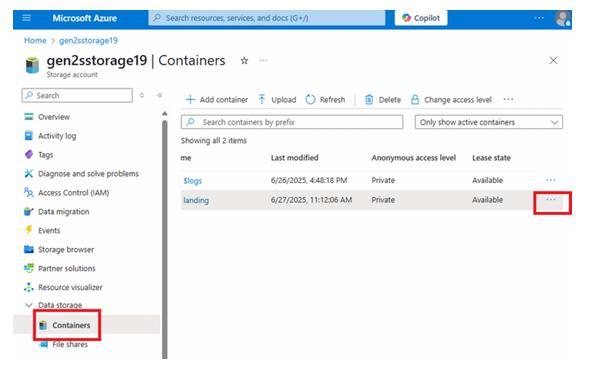
Container listing inside a storage account with the options menu visible.
Diagram-2
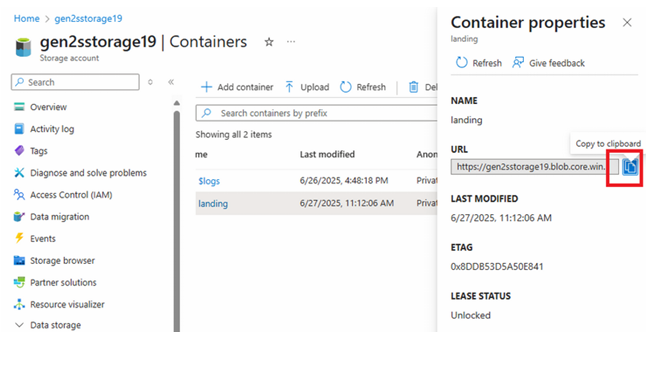
Container properties panel showing the complete container URL in the format:https://<storageaccount>.blob.core.windows.net/<containername>/
This URL will later be converted from https:// to azure:// when added to Snowflake.
4. Step 3: Create the Storage Integration Object in Snowflake
With the Tenant ID and Container URL collected, Snowflake can now create a Storage Integration object that defines:
- Authentication model
- Trusted Azure tenant
- Allowed storage locations
This integration allows Snowflake to access ADLS without storing keys, relying instead on secure identity delegation.
Example Storage Integration Code
CREATE OR REPLACE STORAGE INTEGRATION snow_azure_int
TYPE = EXTERNAL_STAGE
STORAGE_PROVIDER = AZURE
ENABLED = TRUE
AZURE_TENANT_ID = '<tenant_id_here>'
STORAGE_ALLOWED_LOCATIONS = ('azure://<storageaccount>.blob.core.windows.net/<containername>/landing/');
Important Requirement
The value in STORAGE_ALLOWED_LOCATIONS must begin with:
azure://
rather than the copied https:// URL. This notation tells Snowflake to interpret the location as an Azure Blob Storage path.
Now paste both tenant ID & storages allow location URL in below code (which you
copied in notepad from step-1 & step-2 )
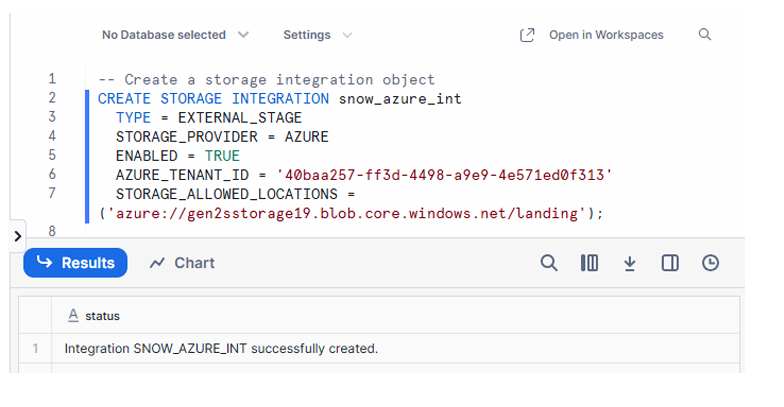
Snowflake worksheet showing successful execution of CREATE STORAGE INTEGRATION, including tenant ID and converted azure:// container URL.
Integration object has been successfully created
NOTE : In storage_allowed_location instead of https replace it with azure as shown in above code
Once this step completes, the integration object is ready, and Snowflake can proceed to the next phase of authentication and consent.
Conclusion
Before connecting Snowflake to ADLS, it is crucial to gather and validate three foundational elements:
- The Tenant ID from Microsoft Entra
- The Container URL from ADLS
- A correctly configured Storage Integration object inside Snowflake
These prerequisites establish the trust relationship and define the boundaries within which Snowflake can operate. With these pieces in place, the environment is ready for granting consent, assigning Azure IAM roles, creating external stages, and ultimately loading data into Snowflake with secure, cloud-native integrations.